Upgrade Your Laptop & Desktop Solid State Drive Today
- meenakshiarorastor
- Apr 4
- 3 min read
In today’s fast-paced digital world, speed and efficiency are everything. Whether you're working, gaming, editing videos, or simply browsing the web, your computer’s performance plays a crucial role in your overall experience. One of the most effective and affordable ways to dramatically improve your system’s performance is by upgrading to a Solid State Drive (SSD).
If you're still using a traditional hard disk drive (HDD), now is the perfect time to switch. Let’s explore why upgrading your laptop or desktop SSD is a smart move, what options are available, and how to choose the best one for your needs.

What is a Solid State Drive (SSD)?
A Solid State Drive (SSD) is a modern storage device that uses flash memory to store data, unlike traditional HDDs that rely on spinning disks and mechanical parts. Because SSDs have no moving parts, they are significantly faster, more durable, and more energy-efficient.
Popular SSD manufacturers like Samsung, Western Digital, and Crucial have revolutionized storage technology by offering high-performance drives at competitive prices.
Why Upgrade to an SSD?
1. Lightning-Fast Speed
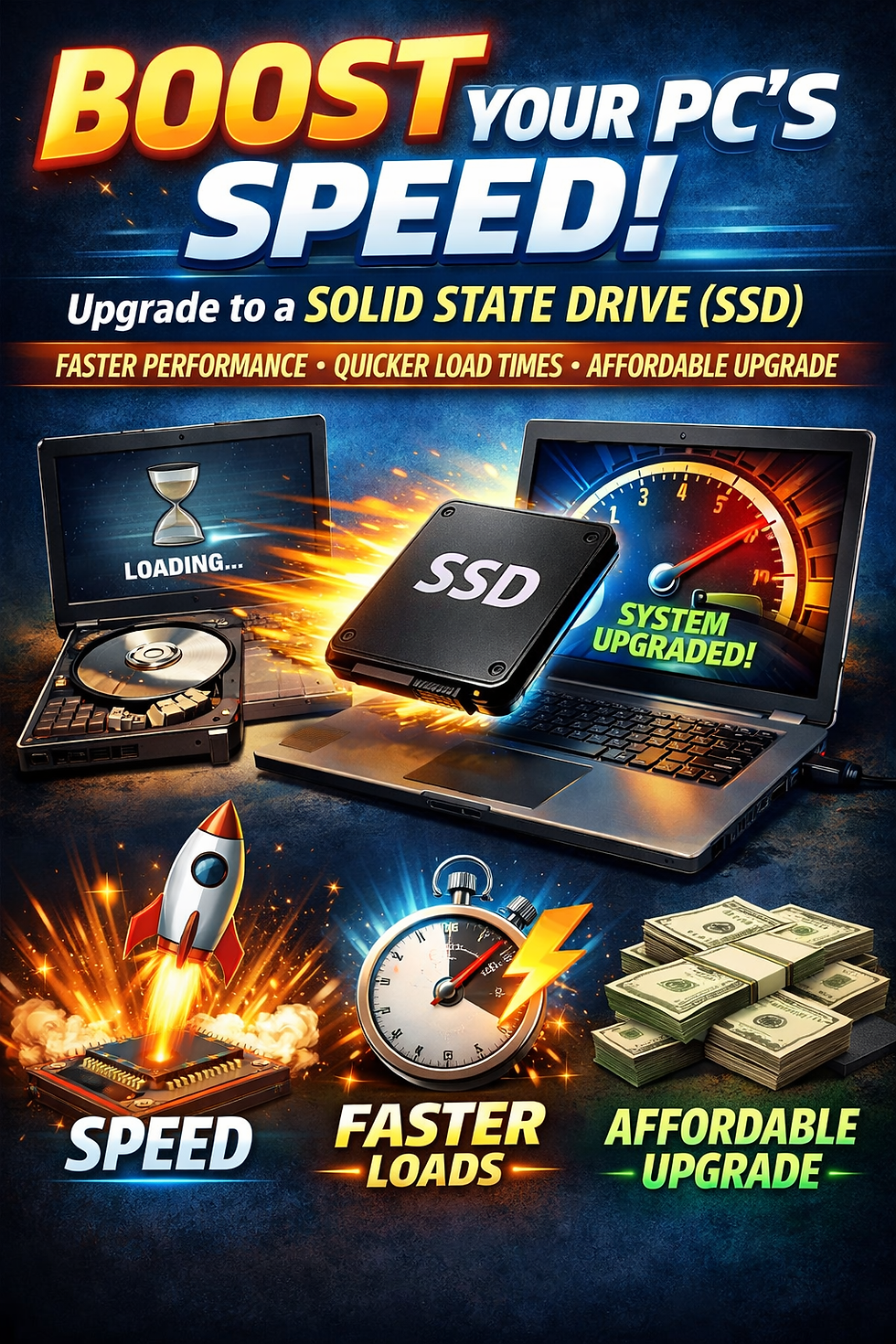
The most noticeable benefit of upgrading to an SSD is speed. Boot times can drop from minutes to seconds. Applications load instantly, and file transfers are much faster.
For example, a system with an HDD might take 1–2 minutes to start, while an SSD-equipped system can boot in under 15 seconds.
2. Improved Overall Performance
Everything becomes smoother with an SSD—multitasking, opening large files, and running demanding software. Whether you’re using tools like Adobe Photoshop or gaming platforms like Steam, an SSD ensures a seamless experience.
3. Durability and Reliability
Since SSDs have no moving parts, they are less prone to physical damage caused by drops or vibrations. This makes them ideal for laptops and portable systems.
4. Energy Efficiency
SSDs consume less power compared to HDDs, which helps extend battery life in laptops. This is especially beneficial for users who are always on the go.
5. Silent Operation
Unlike HDDs, SSDs operate silently. No spinning disks means no noise, creating a more pleasant working environment.
Types of SSDs
When upgrading your system, it’s important to choose the right type of SSD:
1. SATA SSD
These are the most common and affordable SSDs. They are compatible with most laptops and desktops and offer a significant speed boost over HDDs.
2. NVMe SSD
NVMe (Non-Volatile Memory Express) SSDs are much faster than SATA SSDs. They connect via the PCIe interface and are ideal for high-performance tasks like gaming, video editing, and 3D rendering.
Brands like Kingston and Seagate offer powerful NVMe options for advanced users.
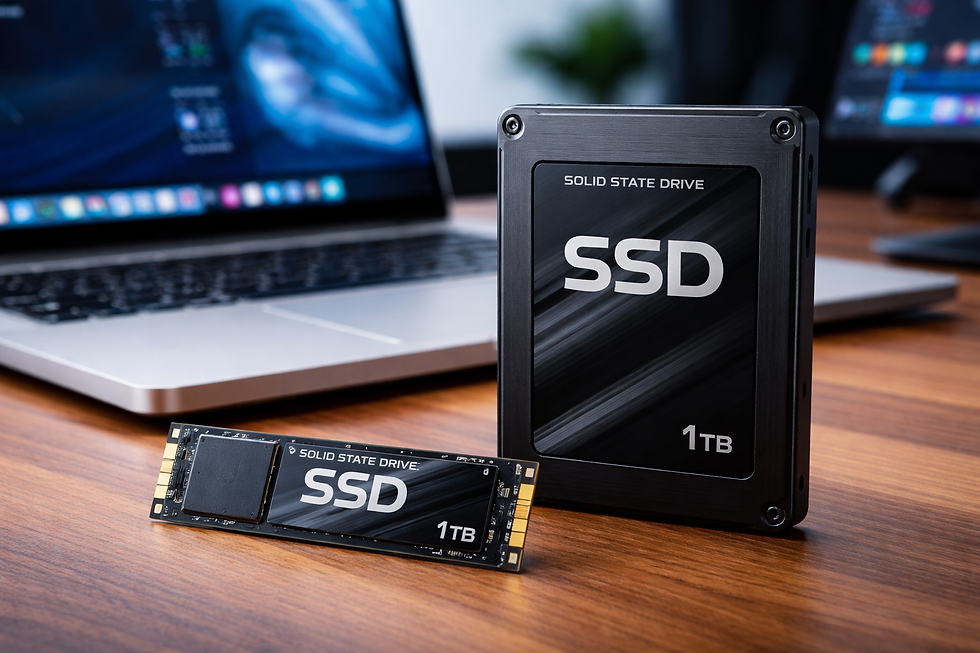
3. M.2 SSD
M.2 is a compact form factor that can support both SATA and NVMe interfaces. It’s commonly used in modern laptops and desktops for its space-saving design.
How to Choose the Right SSD
1. Storage Capacity
SSDs come in various capacities, such as 256GB, 512GB, 1TB, and beyond. Choose based on your usage:
Basic users: 256GB–512GB
Gamers & professionals: 1TB or more
2. Compatibility
Check your system specifications to ensure compatibility. Older systems may only support SATA SSDs, while newer ones can handle NVMe drives.
3. Speed Requirements
If you need maximum performance, go for NVMe SSDs. For everyday use, SATA SSDs are more than sufficient.
4. Budget
SSDs are now more affordable than ever. While NVMe drives are slightly more expensive, the performance benefits often justify the cost.
Installation Process
Upgrading to an SSD is easier than you might think:
Backup Your Data – Always create a backup before making changes.
Clone or Fresh Install – You can clone your existing drive or install a fresh operating system.
Install the SSD – Insert the SSD into the appropriate slot (SATA or M.2).
Configure BIOS – Ensure your system recognizes the new drive.
Install OS & Drivers – Complete setup and enjoy improved performance.
If you're not comfortable doing it yourself, a technician can complete the upgrade quickly.
SSD vs HDD: Quick Comparison
Feature | SSD | HDD |
Speed | Very Fast | Slow |
Durability | High | Moderate |
Noise | Silent | Noisy |
Power Usage | Low | Higher |
Price per GB | Slightly Higher | Lower |
Best Use Cases for SSD Upgrade
Students needing fast boot and application access
Professionals working with heavy software
Gamers wanting faster load times
Businesses improving productivity
Content creators handling large files
Future-Proof Your System
With software becoming more demanding every year, upgrading to an SSD is no longer a luxury—it’s a necessity. Operating systems like Windows 11 are optimized for SSD performance, ensuring faster updates and better responsiveness.
Final Thoughts
Upgrading your laptop or desktop with a Solid State Drive is one of the smartest investments you can make. It delivers immediate performance improvements, enhances reliability, and extends the lifespan of your system.
Whether you choose a budget-friendly SATA SSD or a high-speed NVMe drive from trusted brands like Samsung or Western Digital, the difference will be noticeable from day one.


Comments